A simple guide to uploading images (or GIFS) on Steam with any height for Artwork or Screenshot showcases. If you are facing any issues feel free to watch our video tutorial
Important Note
You must be at least Level 10 on Steam to show an artwork/screenshot showcase.
Be careful not to upload images too small in resolution to be long.
Background Cropper Tool will automatically crop your steam background to the correct dimensions.
If you are using the normal artwork showcase (1 middle and 1 side); for middle artwork, width should be 506 pixels wide and any height. Then side artwork should be 100 pixels and with the same height as the middle if you want it to align.
If you are using the featured artwork showcase which is only one big middle artwork, then it needs to be 630 pixels wide and any height.
STEP 01:
Open this link in Google Chrome or Mozilla Firefox.
STEP 02:
Select your artwork under Choose File.
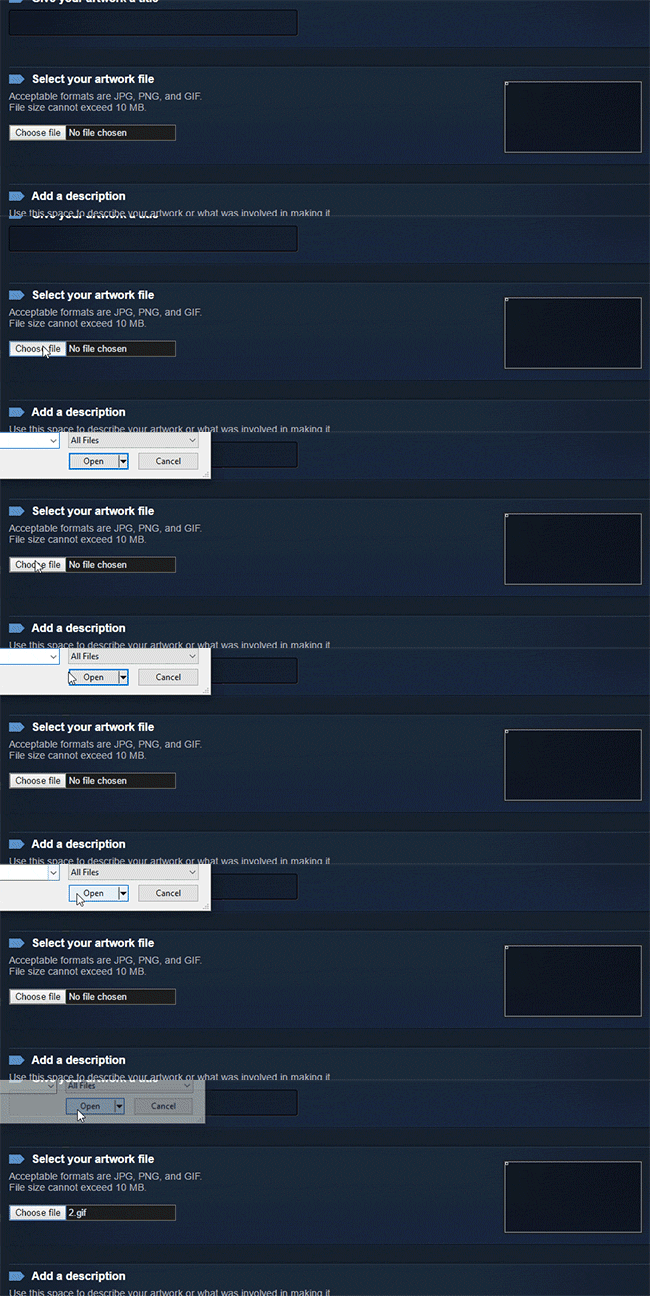
STEP 03:
Right click anywhere on the page, click inspect/inspect element then go to the ‘Console’.
Or use Shortcuts
Chrome shortcut: Ctrl+Shift+J
FireFox Shortcut: Ctrl+Shift+K
FIREFOX Only Users:
Firefox only (only needs to be done once): after opening the console, MANUALLY type in “allow pasting ” without quotation marks and then remove it (you do not need to press enter). By default Firefox does not allow you to paste codes into the console and this disable that
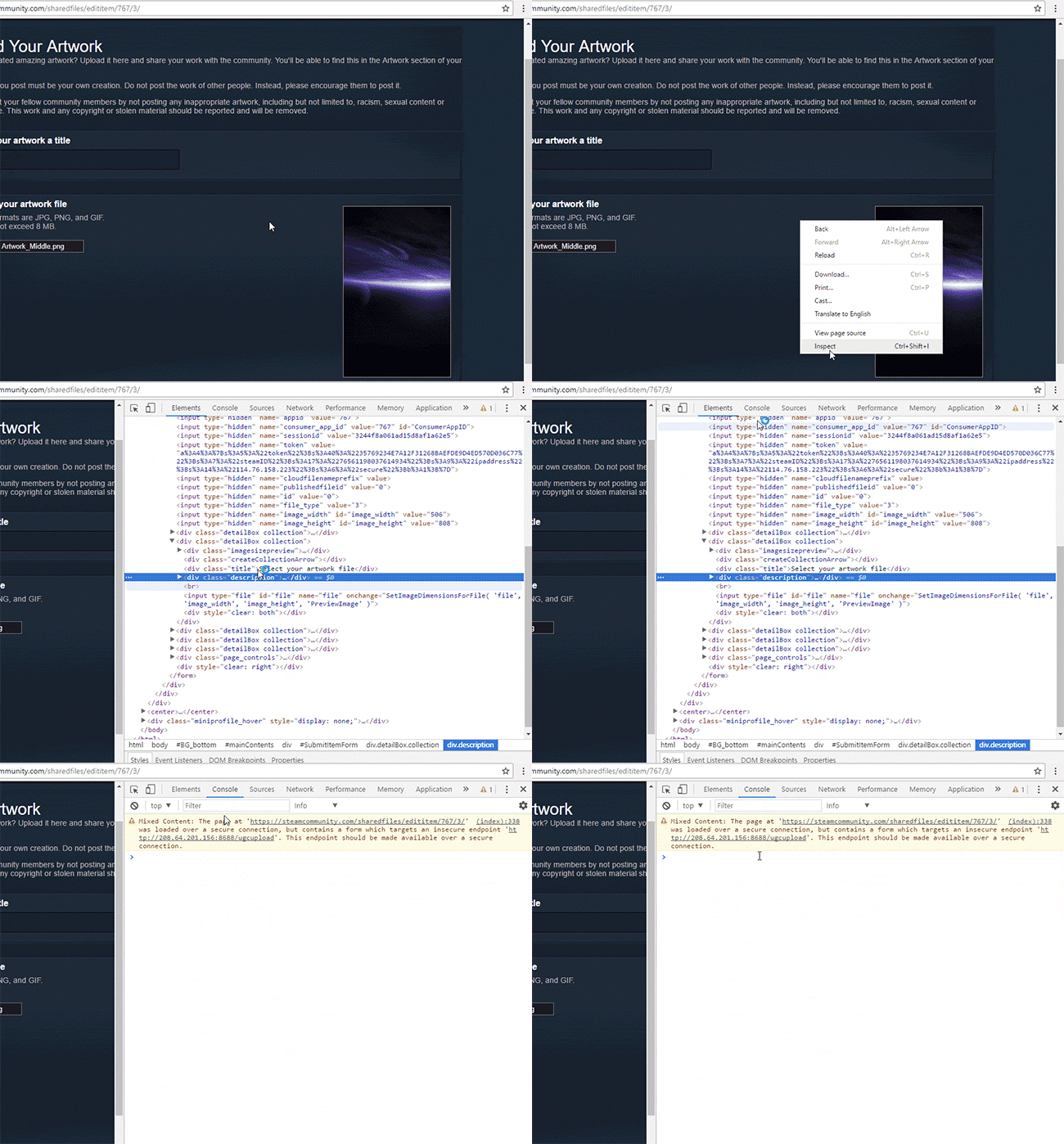
STEP 04:
Paste ONE of these codes into the console and hit enter. Only one of these codes need to be used, not both.
Ignore the image preview if it is showing the wrong image/gif or nothing at all. Your last selected gif will be uploaded.
Enter this line of code into the console to upload as an Artwork or Featured Artwork:
$J('#image_width').val(1000).attr('id',''),$J('#image_height').val(1).attr('id','');
Enter this line of code into the console to upload as Screen-Shot Showcase:
$J('#image_width').val(1000).attr('id',''),$J('#image_height').val(1).attr('id',''),$J('[name=file_type]').val(5);
STEP 05:
Now simply give it a title and tick that “I certify that I created this artwork” box, then “Save and Continue”.
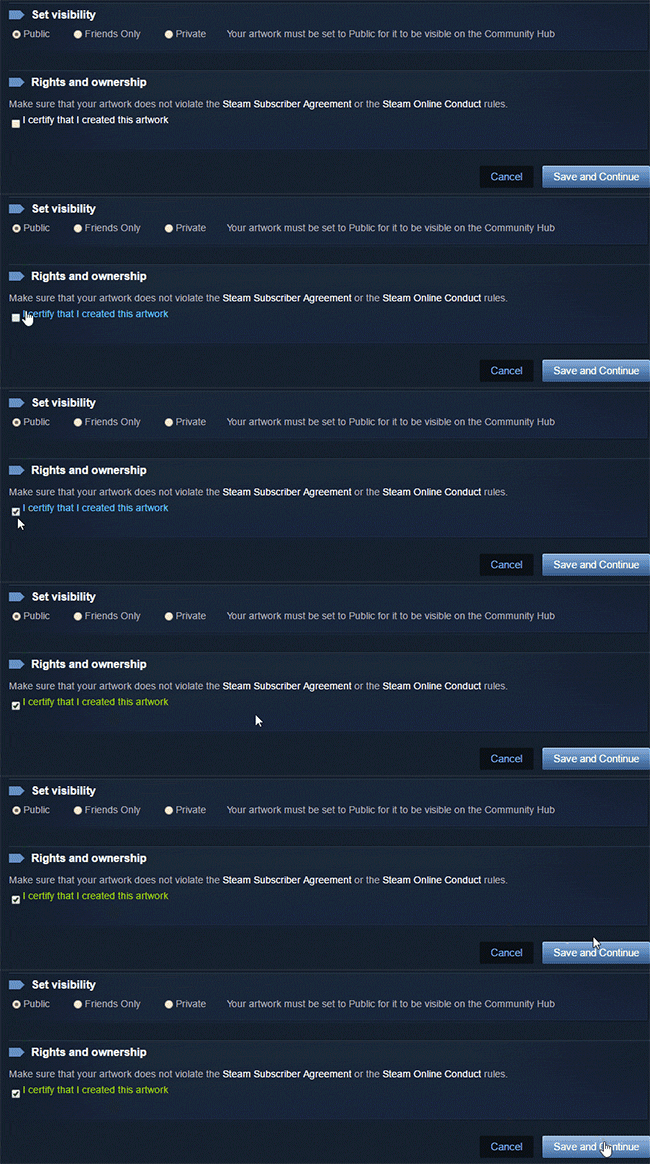
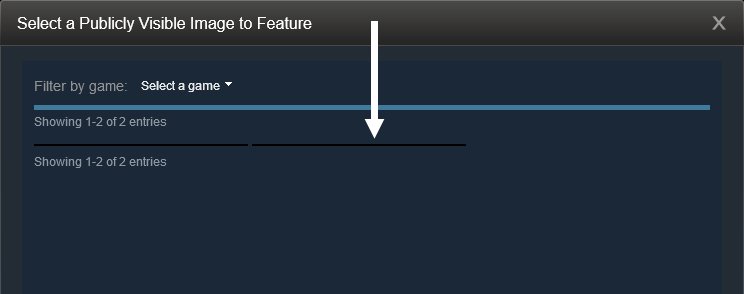
IMPORTANT: On the artwork selector, your artwork will appear to be a thin black line. That is perfectly fine and it means the code worked, when you select the artwork it should look normal after loading.
If you are confused with these lines, you can watch our tutorial!
Console Code for Artwork or Featured Artwork
$J('#image_width').val(1000).attr('id',''),$J('#image_height').val(1).attr('id','');
Enter this line of code into the console to upload as an Screenshot:
$J('#image_width').val(1000).attr('id',''),$J('#image_height').val(1).attr('id',''),$J('[name=file_type]').val(5);